
Instructions for Moving to The Central Texas Digital Consortium in Libby
As of January 5, 2025 The Dripping Springs Community Library has joined the Central Texas Digital Consortium for Libby. This move gives you a larger library of titles to choose from.
The following are instructions on how to migrate to the consortium.
- In the app (or browser page if on a computer), at the bottom you should see the Libby icon in the center of the other menu options for the app, select it.

- You should now see the “Dripping Springs Community Library” and below it the options to “Manage Cards” and “Add Library.” Select “Add Library.”
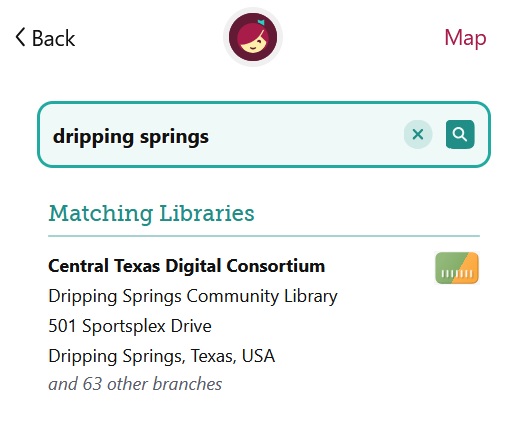
- In the Search field, type in “Central Texas Digital Consortium.” You should see a member library of the consortium and below it it should say “and 63 other branches” (this number can change as libraries are added). Select it.
- You will now be taken to the home page for the consortium. Select “Sign In With My Card.”
- You will now see a list of libraries and the option for “57 more.” (As of now it is 57, it can change as libraries are added”). Select “57 more.”
- Search for “Dripping Springs Community Library” and select it.
- Enter your card number and select “Next.”
- Enter your library account password (By default it is the phone number associated with your account) and select “Sign In.”
- You should now see a message that you are signed in, select “Next” at the bottom.
If you have multiple library cards and one of them is a member of the consortium already
You will simply need to manage your cards.
- In the app (or browser page if on a computer), at the bottom you should see the Libby icon in the center of the other menu options for the app, select it.
- Select the option to “Manage Cards.”
- Select “Add Card.”
- You will now see a list of libraries and the option for “57 more.” (As of now it is 57, it can change as libraries are added”). Select “57 more.”
- Search for “Dripping Springs Community Library” and select it.
- Enter your card number and select “Next.”
- Enter your library account password (By default it is the phone number associated with your account) and select “Sign In.”
- You should now see a message that you are signed in, select “Next” at the bottom.